
About Tribute Videos
Learn what Tribute Videos are, who can create them, what they cost, and which files are supported.
What is a Tribute Video?
A Tribute Video is a memorial slideshow video created from photos and videos shared by family and friends. It lives on the memorial page and can be updated over time.
You can create a beautiful, collaborative slideshow video from all the content added to your Memorial page’s Memento tab in minutes.
Tips for Creating a Meaningful Tribute Video
- Start with 10–20 photos
- Invite contributors early
- Choose music that reflects your loved one
- Take your time — you can save and return anytime
You can view a sample Tribute Video by clicking here.
Who can create a Tribute Video?
The Keeper of the Memorial page can get the Tribute Video started.
Once the video has been started, the Keeper can invite family and friends to contribute photos and videos.
Contributors can add photo and video content to the tribute video, but only the Keeper can publish the Tribute Video. The Keeper can remove any photos and videos contributed by others before publishing the video.
Is there a cost to create a Tribute Video?
Yes. Creating a Tribute Video involves a one-time fee that helps ensure a beautifully crafted, lasting keepsake for your family.
A one-time fee of $50 per memorial is required to create a Tribute Video. This covers the custom video creation process from beginning to end. It also includes the video automatically being published on your memorial page. Payment is completed before the video editor begins work.
Additional details: You can create one Tribute Video per memorial page
There are no recurring or ongoing fees
What can I add to a Tribute Video?
Photos and videos already in the memorial’s Mementos Library will be automatically added
Additional uploaded photos and videos can be added by yourself and invited contributors
Music and cover image selection
Do contributions of videos and photos need approval?
Once the video has been started, the Keeper of the memorial page can invite family and friends to contribute photos and videos. Contributors can add photo and video content to the tribute video.
If the video is still in draft, contributions are included automatically. The Keeper can remove any photos and videos contributed by others before publishing the video.
If the video is already published, new contributions require approval. You can remove any contributions
What does “Draft” mean?
When you video is in Draft, this means:
The video is still being created
It is not visible to visitors
The video is not published on your memorial page
You can return and continue editing at any time
Can I edit the video after publishing?
Yes. After a Tribute Video is published, there are two ways you can make updates, depending on what you’d like to change.
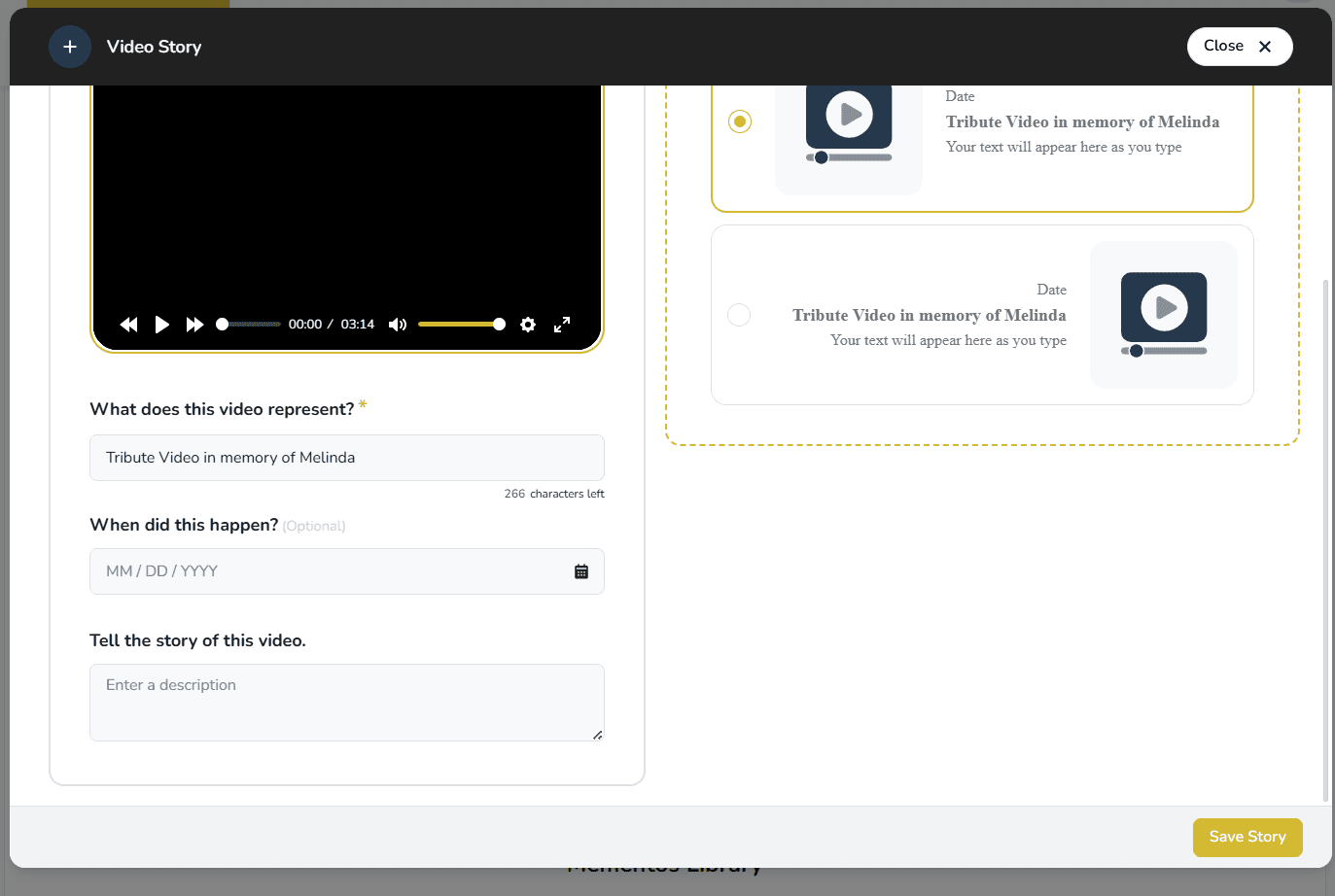
You can update the title, date, and description of the Tribute Video directly from the memorial page in Keeper.
These changes update how the video is displayed on the memorial
The video itself is not changed
You do not need to republish the video
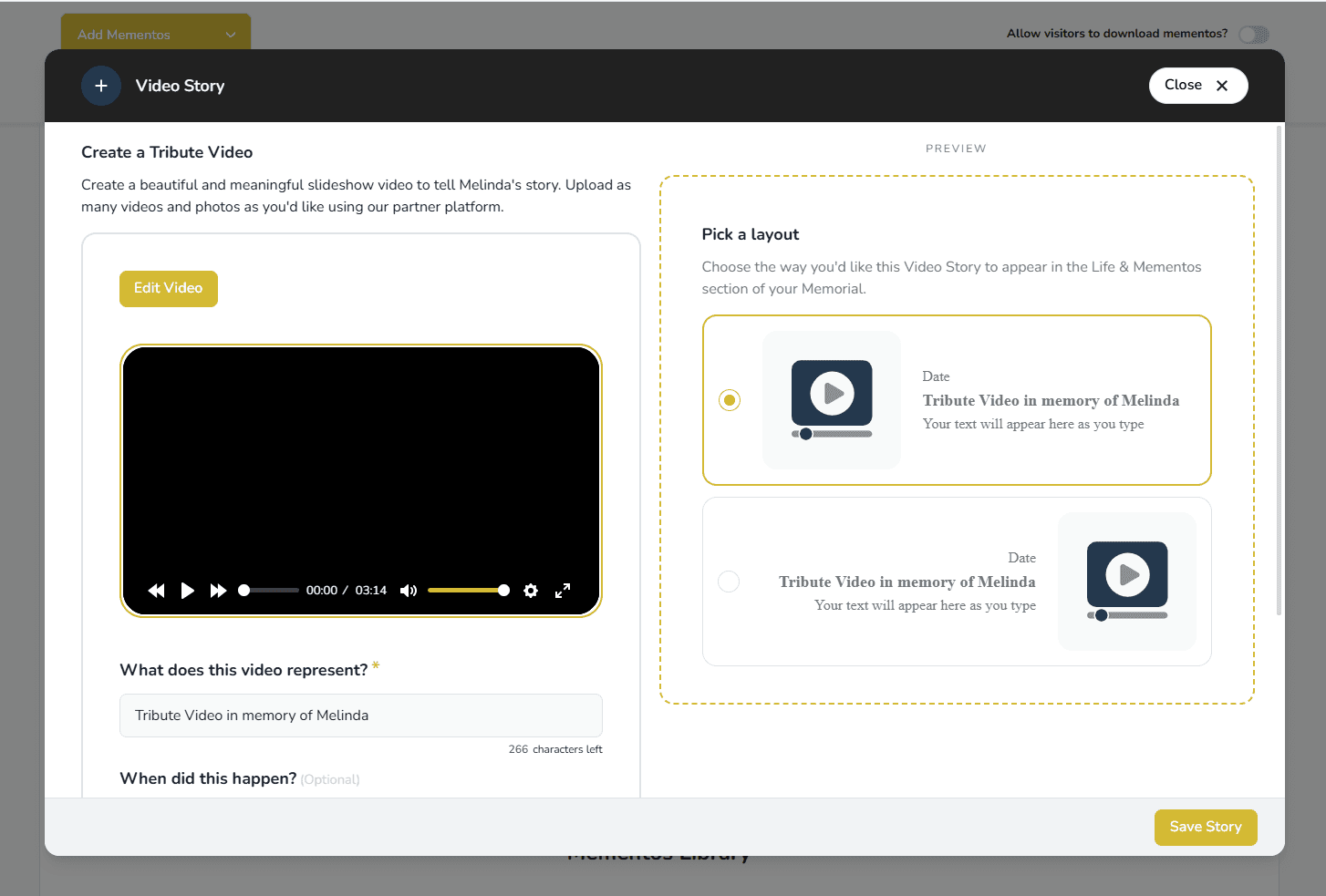
If you want to change the video content — such as adding photos, changing music, or reordering slides — you can reopen the video editor.
Click Edit Video to return to the Social Tribute editor
Make your changes
Publish the video again to apply the updates
Will the photos and videos I add to my tribute video stay in Keeper?
Yes. When publishing the video, you can choose to sync all content back to Keeper’s Mementos Library so it’s available across the memorial.
What file types can I upload to my Tribute Video?
You can upload photos, videos, and music files that meet the supported format requirements below.
Images (Photos):
- Supported formats: JPEG, PNG, TIFF, BMP, HEIC
- Maximum resolution: 50 megapixels (approximately 7000 × 7000)
- Maximum number of images: 1,000
Videos:
- Supported formats: MP4, AVI, MOV
- Minimum resolution: 16 × 16
- Maximum file size: 1 GB per video
- Duration per video: Between 5 seconds and 10 minutes
- Recommended maximum resolution: 1920 × 1080
- Maximum number of videos per tribute: 30
Music (Audio)
- Supported formats: MP3, OGG, M4A, AAC
- Maximum file size: 100 MB
- Note: M4P files (Apple-protected audio) are not supported.
Is there a limit to how many photos and videos I can add?
Yes. To ensure smooth video processing and playback:
You can add up to 1,000 photos
You can add up to 30 video clips
Each video file must be 1 GB or smaller
The total slideshow length cannot exceed 3 hours
For best results, shorter videos and fewer files will process faster.
How long does it take for my Tribute Video to generate or update?
Most Tribute Videos are ready in under 15 minutes.
In some cases, processing may take longer:
Large videos with many photos or clips may take up to 3 hours
Adding a large number of files at once increases processing time
Very long slideshows may take longer to finalize
If you recently made multiple updates, allow time for the latest version to finish rendering.
Why isn’t my Tribute Video showing my most recent changes?
If you made several edits to the tribute video close together, the updated version may still be processing.
Try the following:
Wait a few minutes and refresh the page
Make sure you clicked Publish after editing
Allow extra time if large files were added
Once processing finishes, the newest version will automatically appear.
Why can’t I hear the music or audio in my Tribute Video?
In many cases, audio is muted by default on certain devices or browsers.
Try these steps:
Check your device volume
Make sure the video player sound is turned on
Verify your browser tab is not muted
If audio still does not play, refreshing the page often resolves the issue.
Can I create one Tribute Video for two people?
Yes, it is possible to include photos of more than one person in a Tribute Video.
However, the automatic intro and outro text are designed for a single name.
To customize this:
- You can upload custom intro and ending slides with your own text, or
- Enter both names in the name fields when creating the tribute
Results may vary depending on name formatting.
Who do I contact if I need help?
Our support team will be happy to assist you:
- Contact us via this form
- Or use the chat bubble to leave a message for us