Getting Started: Create Your First Tribute Video
Create a meaningful tribute video using photos and videos shared by family and friends.
Create a meaningful tribute video using photos and videos shared by family and friends. Tribute Videos live directly on the memorial page and can be updated over time.
Getting Started: Create Your First Tribute Video
Step 1: Open the Mementos Tab
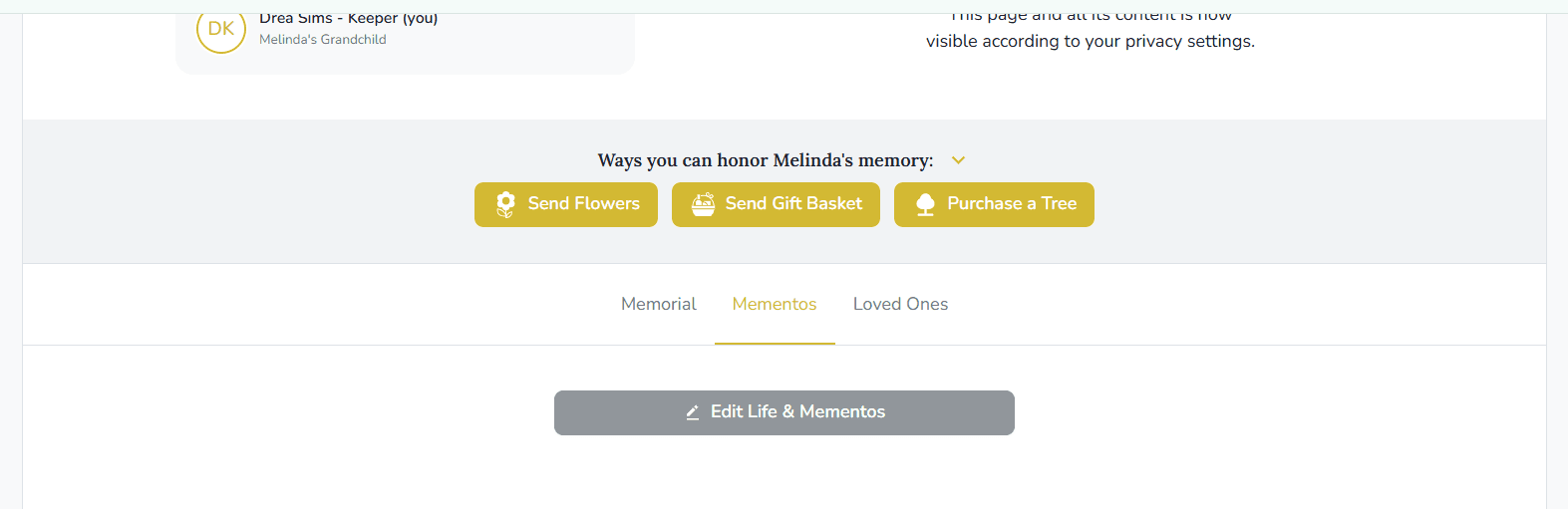
From the memorial page, select the Life & Mementos tab and click Edit Mementos.
Step 2: Start the Tribute Video
There are a few ways to start creating a Tribute Video, depending on what’s already been added to the Mementos tab.
If no content has been added to Mementos yet:
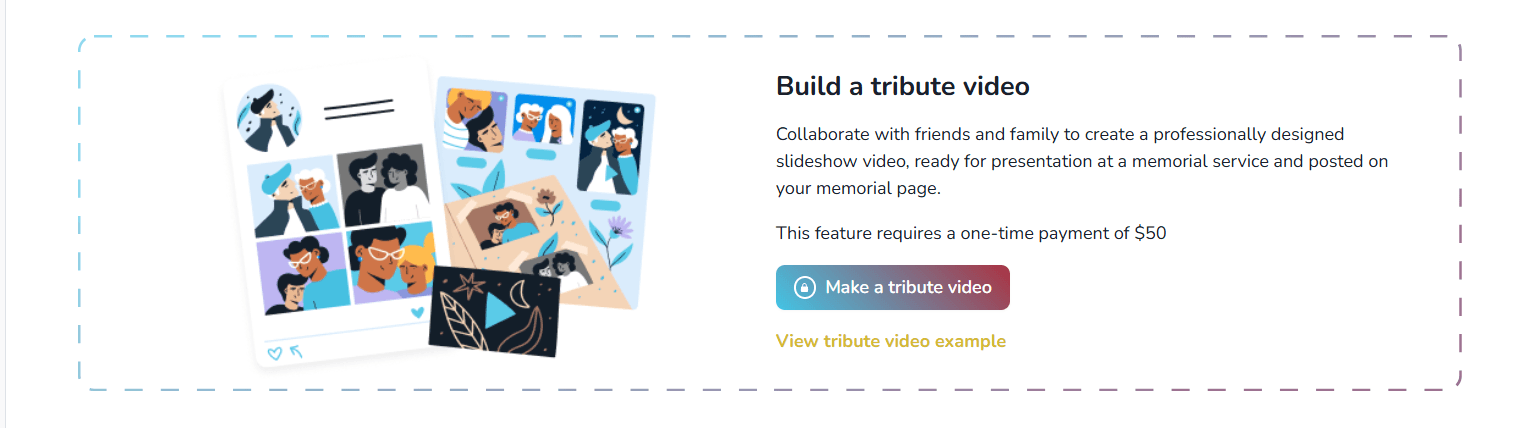
- You’ll see an empty state introducing Tribute Videos
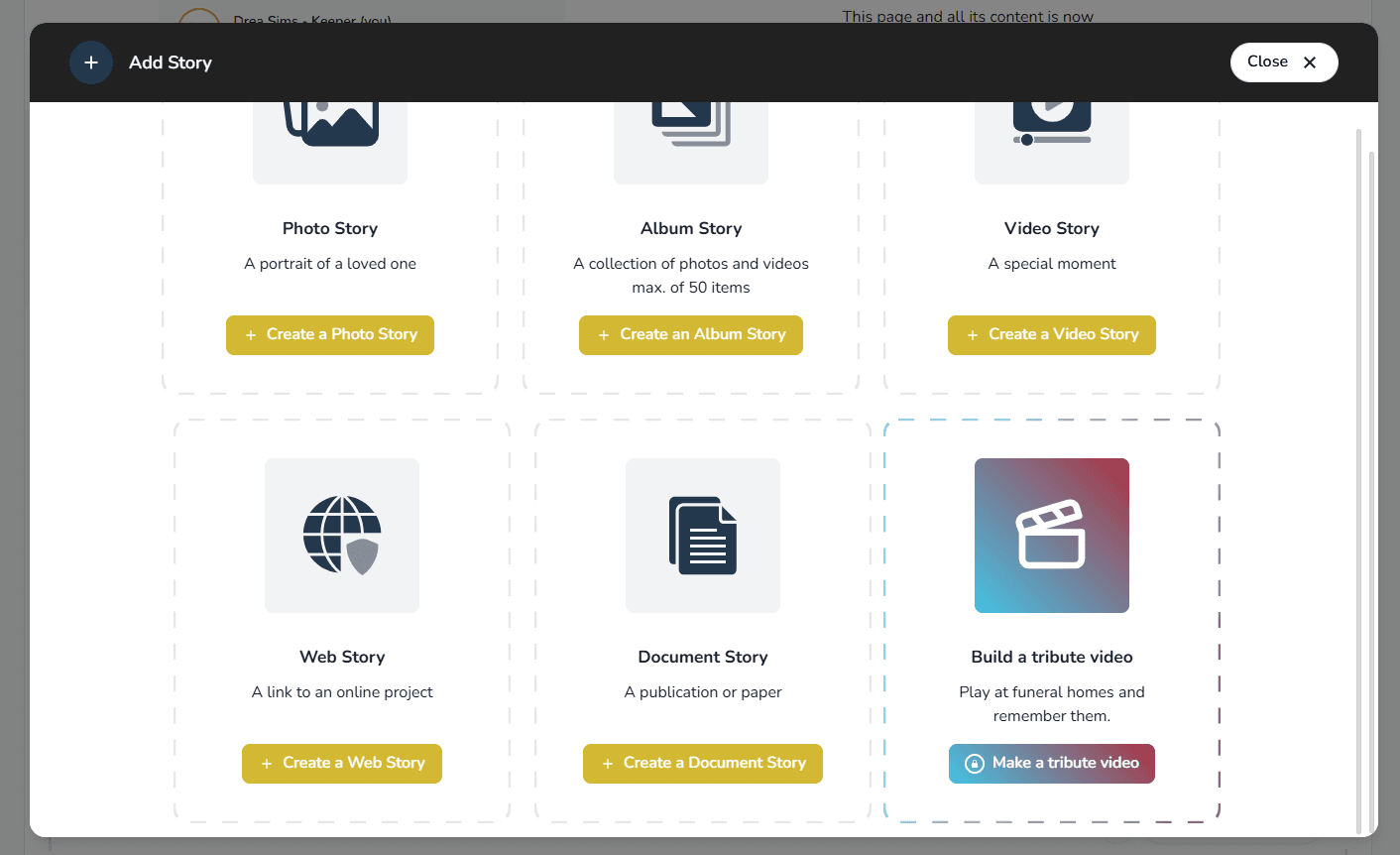
- Click Make a Tribute Video to get started
If content already exists in Mementos:
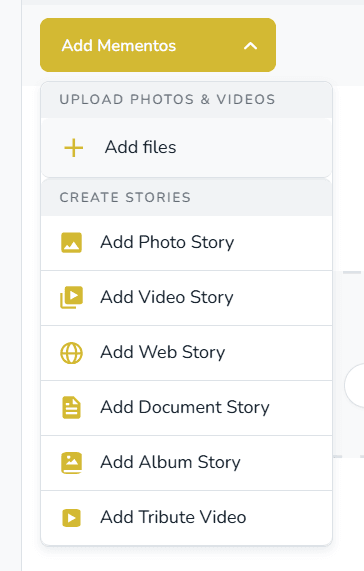
- Click Add Mementos, then choose Tribute Video
- Or select Add Mementos Story, where creating a Tribute Video is listed alongside other options such as milestones and quotes
All of these entry points start the same Tribute Video creation flow.

Step 3: Complete Payment (If Required)
In most cases, family members are asked to complete a one-time payment before creating a Tribute Video. For organization memorials, this depends on how the organization has configured the feature.
- A modal opens within Keeper explaining the Tribute Video and what’s included:
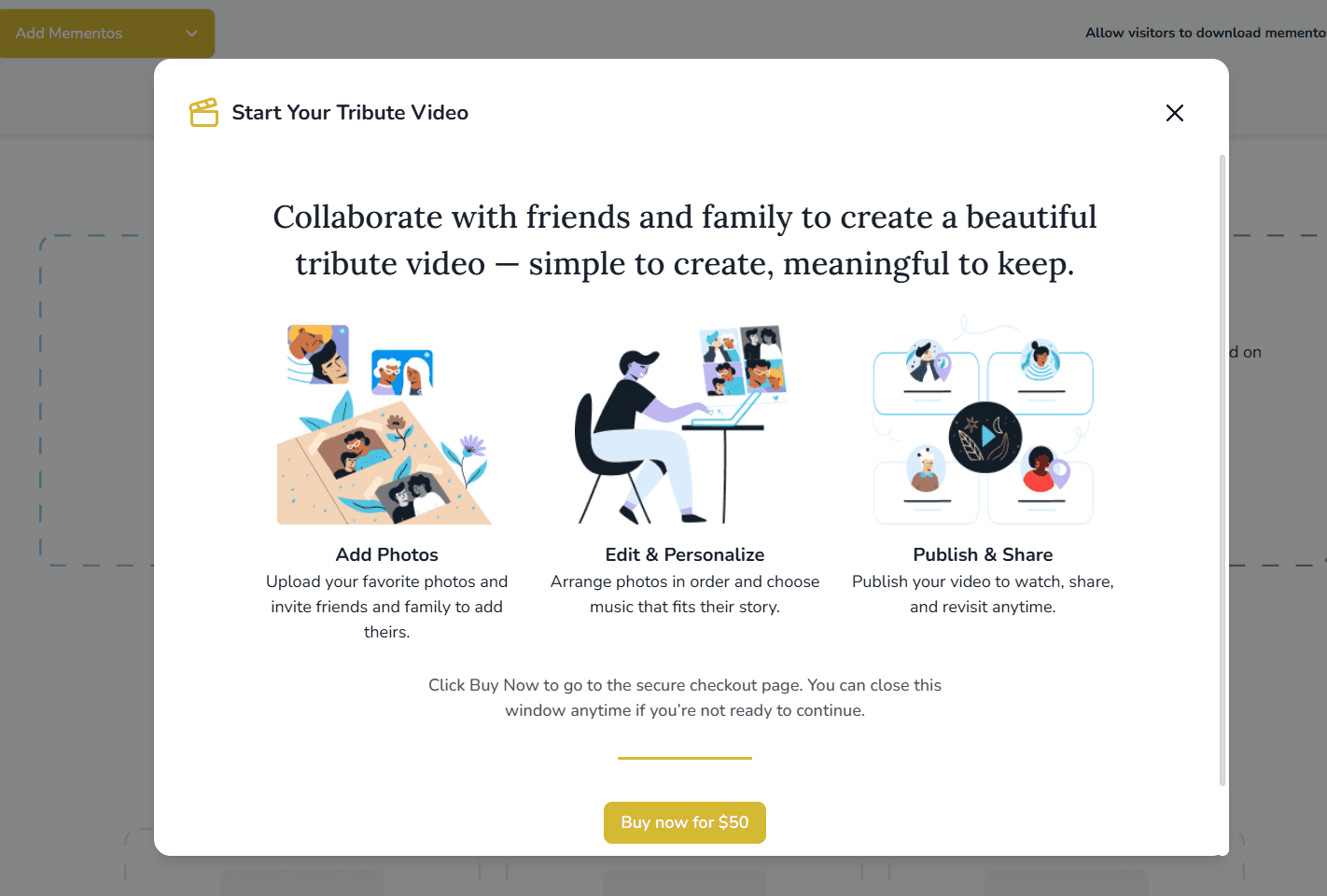
- Click the button to proceed, and a secure payment window opens on top of the modal:
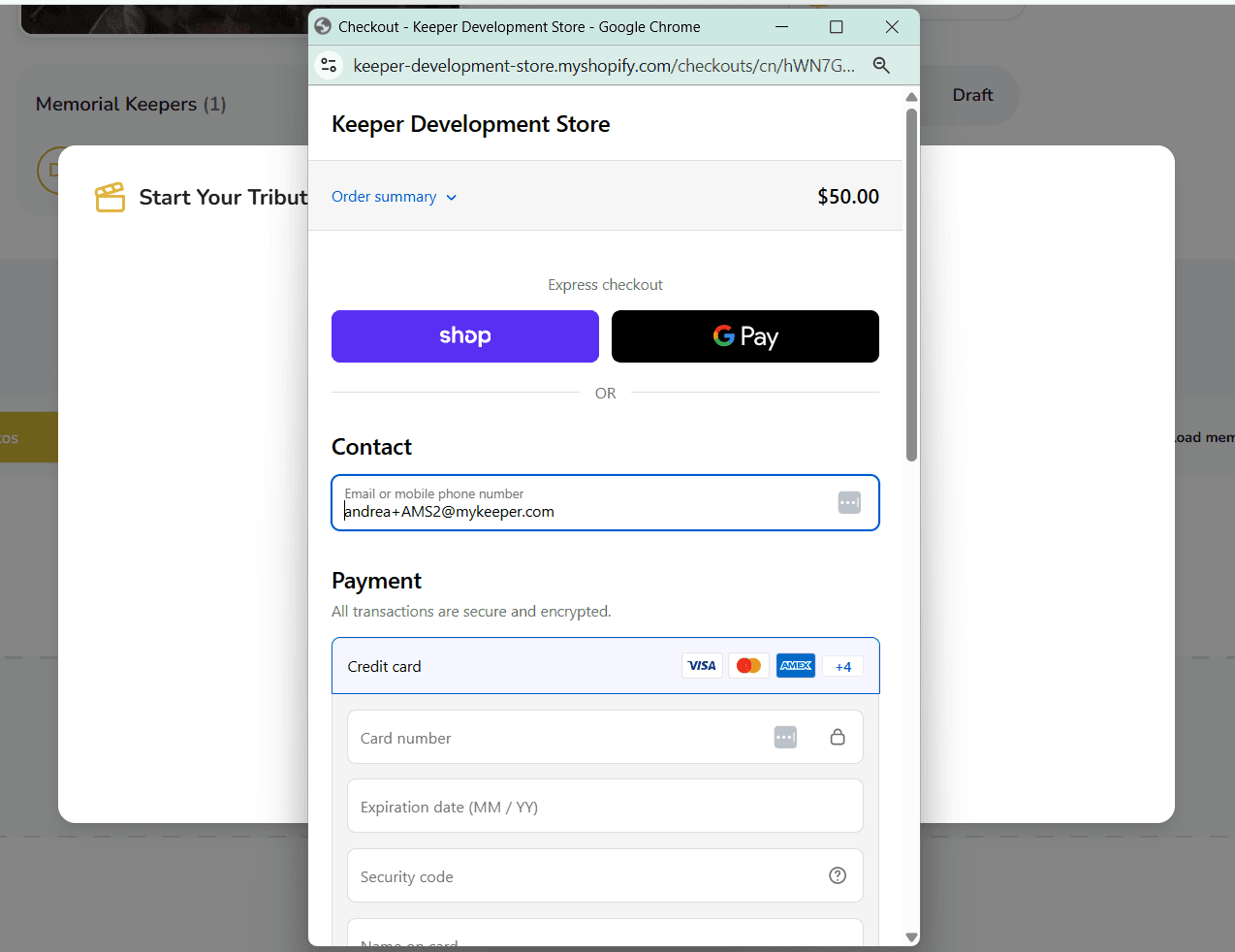
- Complete payment, then close the payment window or click Back to site
- The original modal updates to a loading state while your Tribute Video is prepared:
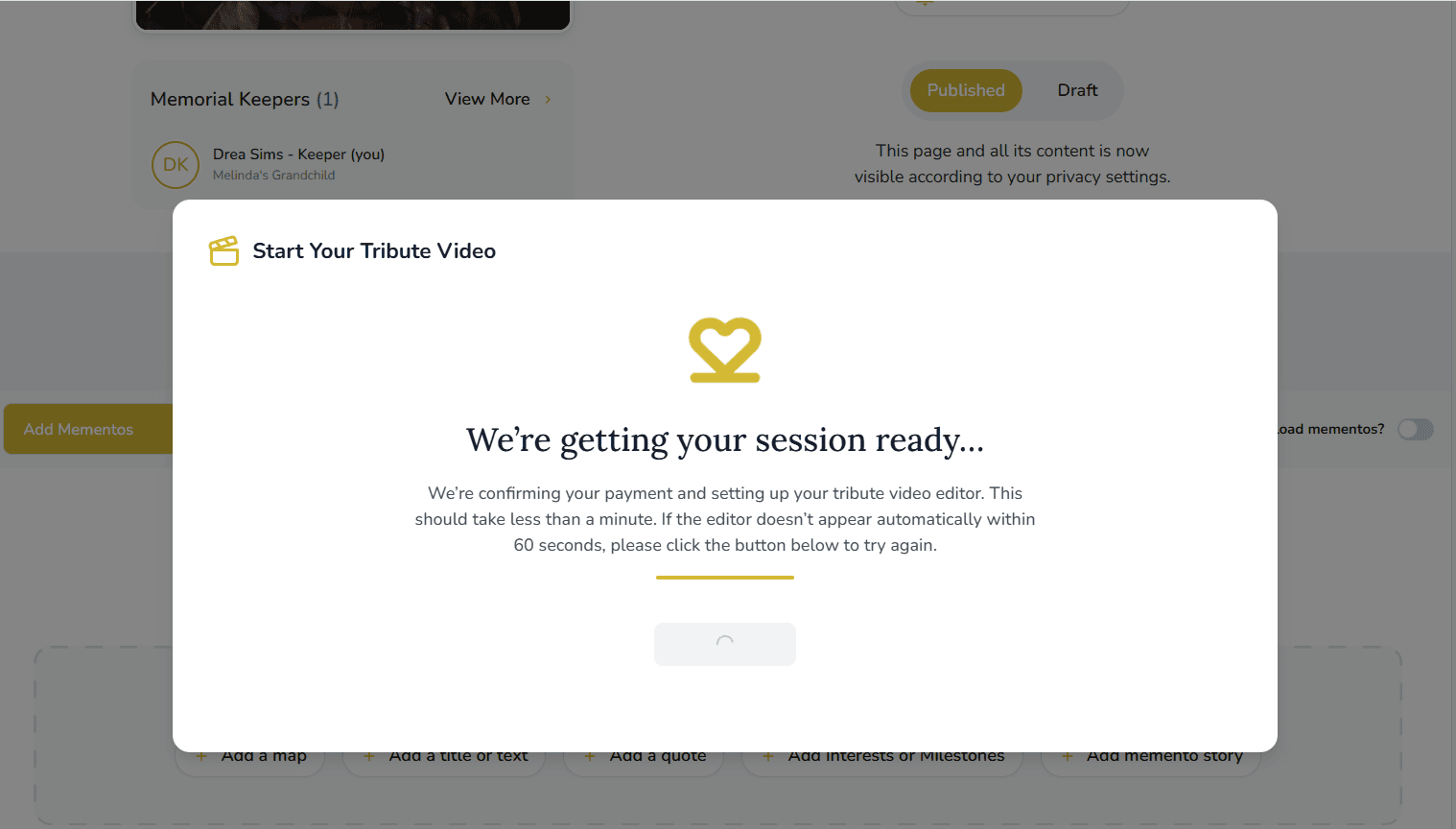
- Once ready, the video editor opens automatically — without leaving Keeper
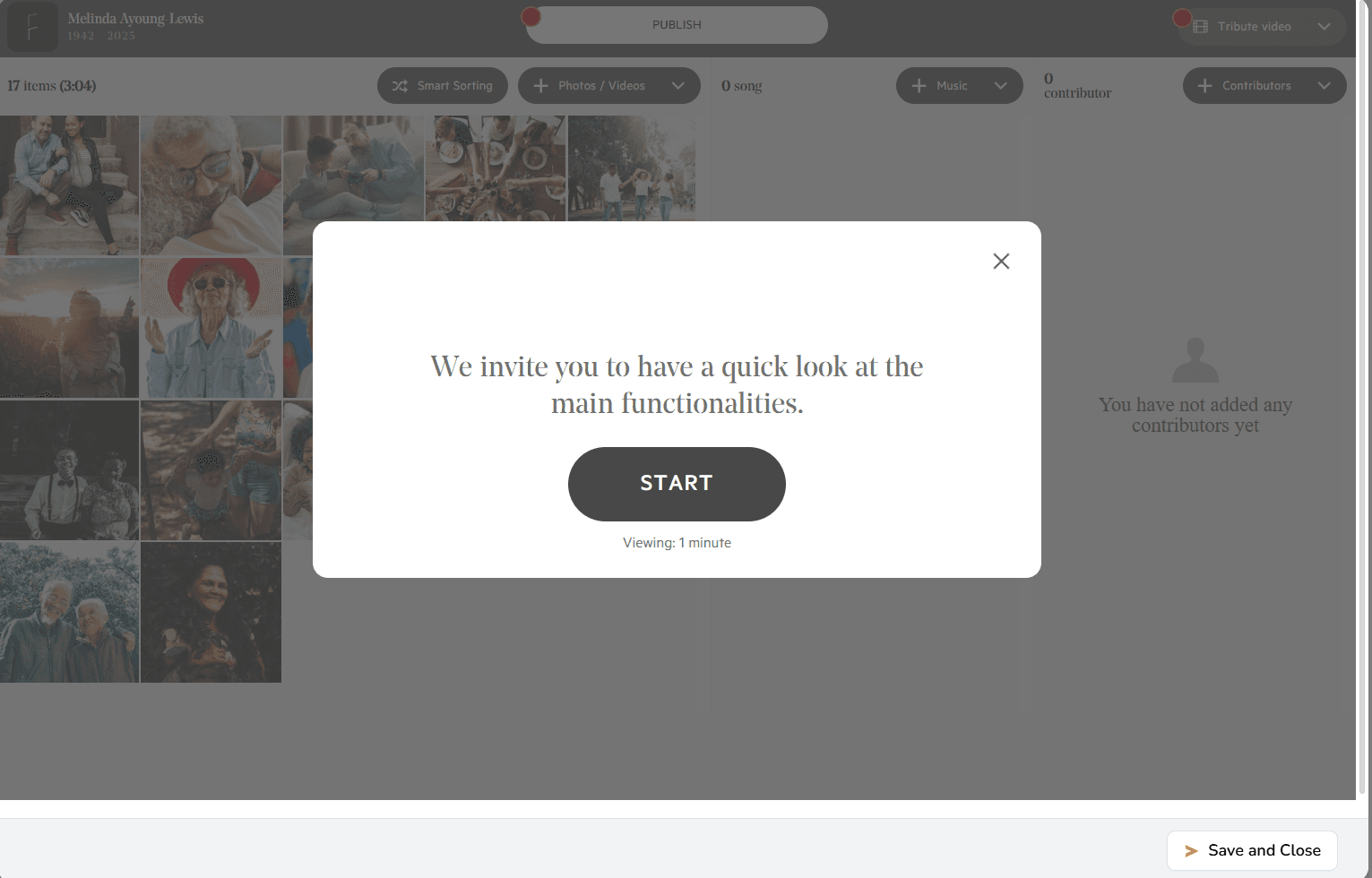
If setup takes longer than expected, you’ll see an option to refresh
Step 4: Build Your Video
Once the editor opens:
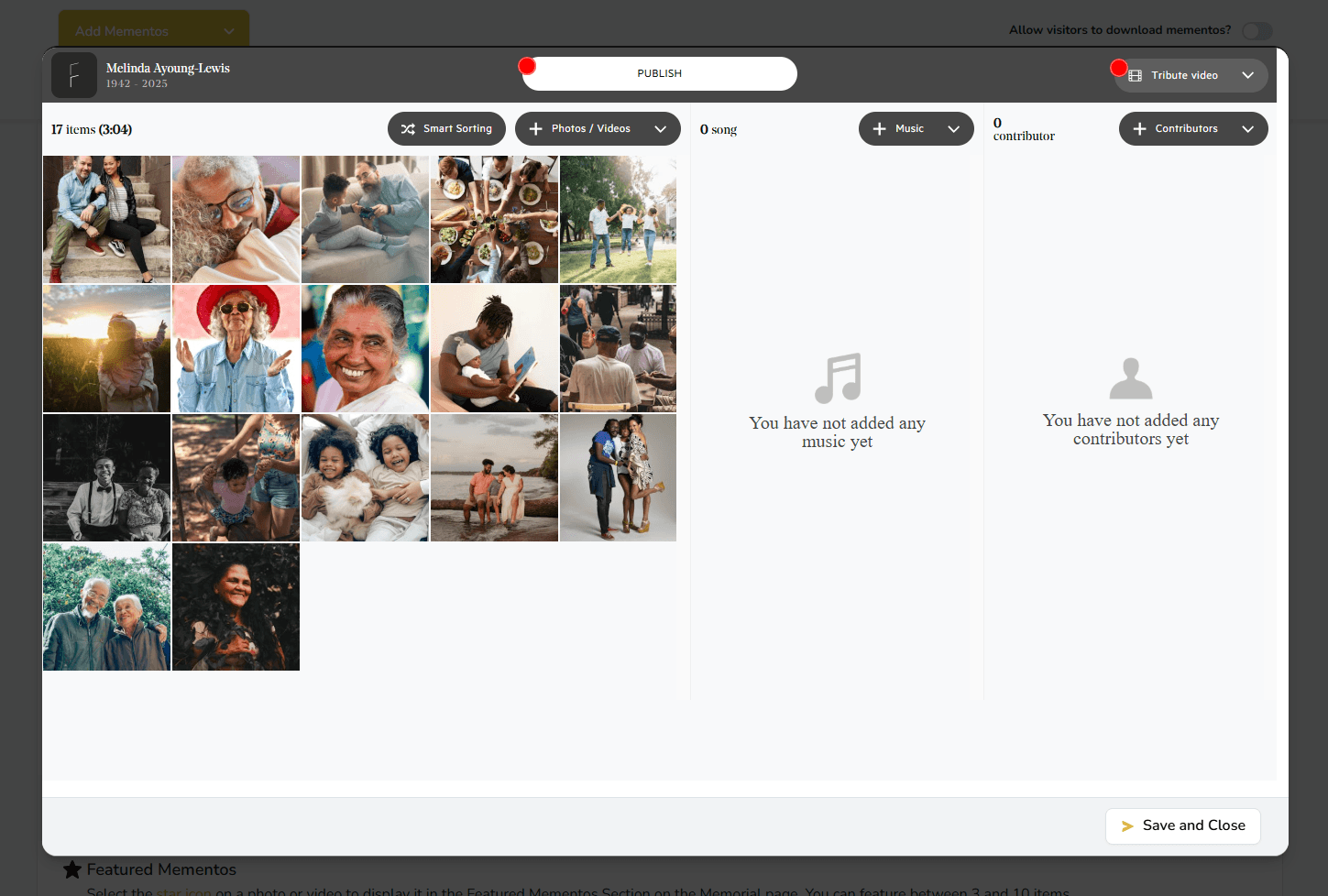
- Photos and videos already in the Mementos Library are automatically included
- You can upload additional photos and videos
- Choose music and select a cover image
- Arrange the order of content
Step 5: Invite Family & Friends (Optional)
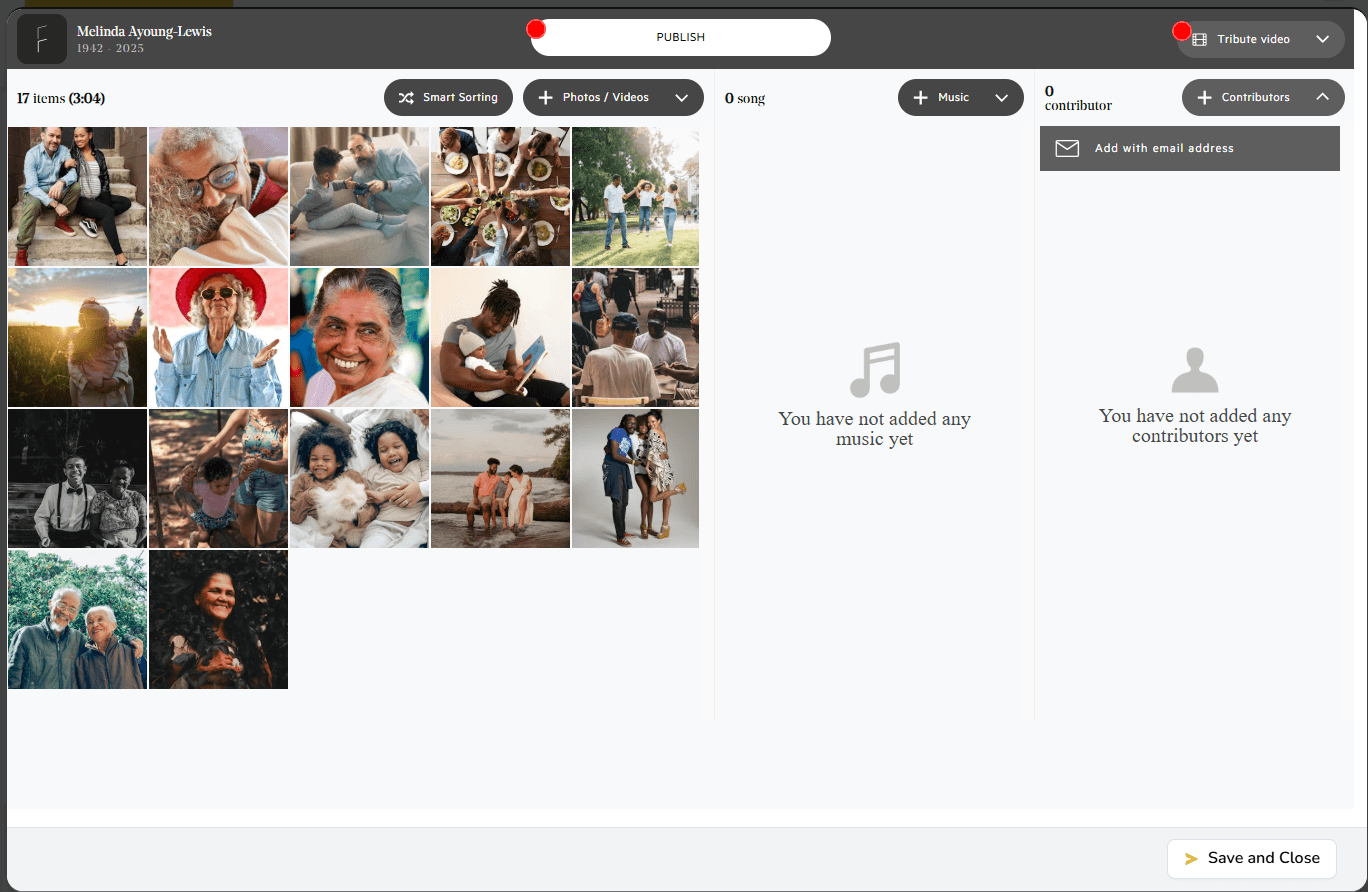
You can invite others to contribute photos and videos.
- Click Add Contributor
- Enter their email address
- They’ll receive a secure link to add content
Contributors can add photos and videos, but cannot edit or publish the video.
Step 6: Publish When Ready
While you’re working, the video stays in Draft mode and isn’t visible to visitors. Simply click the “Draft” button to continue editing.
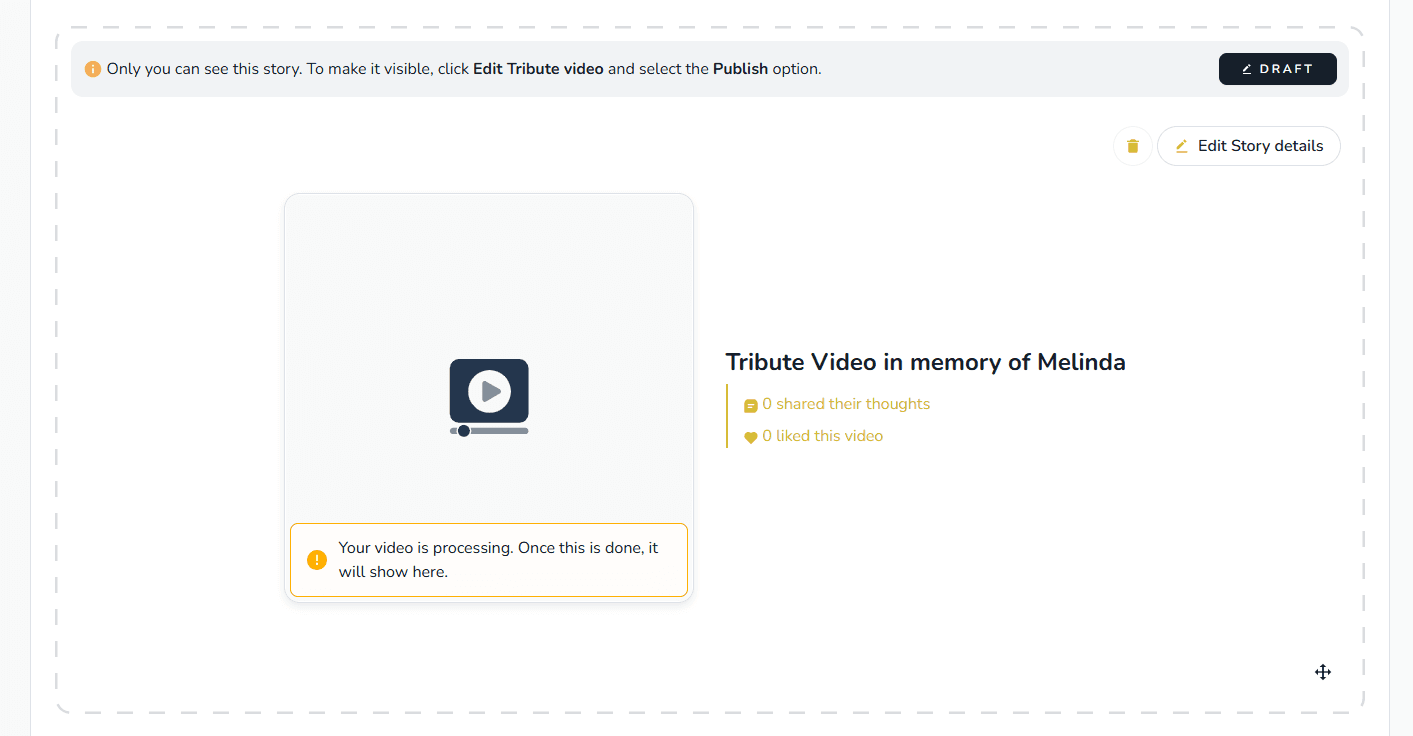
When you’re ready:
- Click Publish
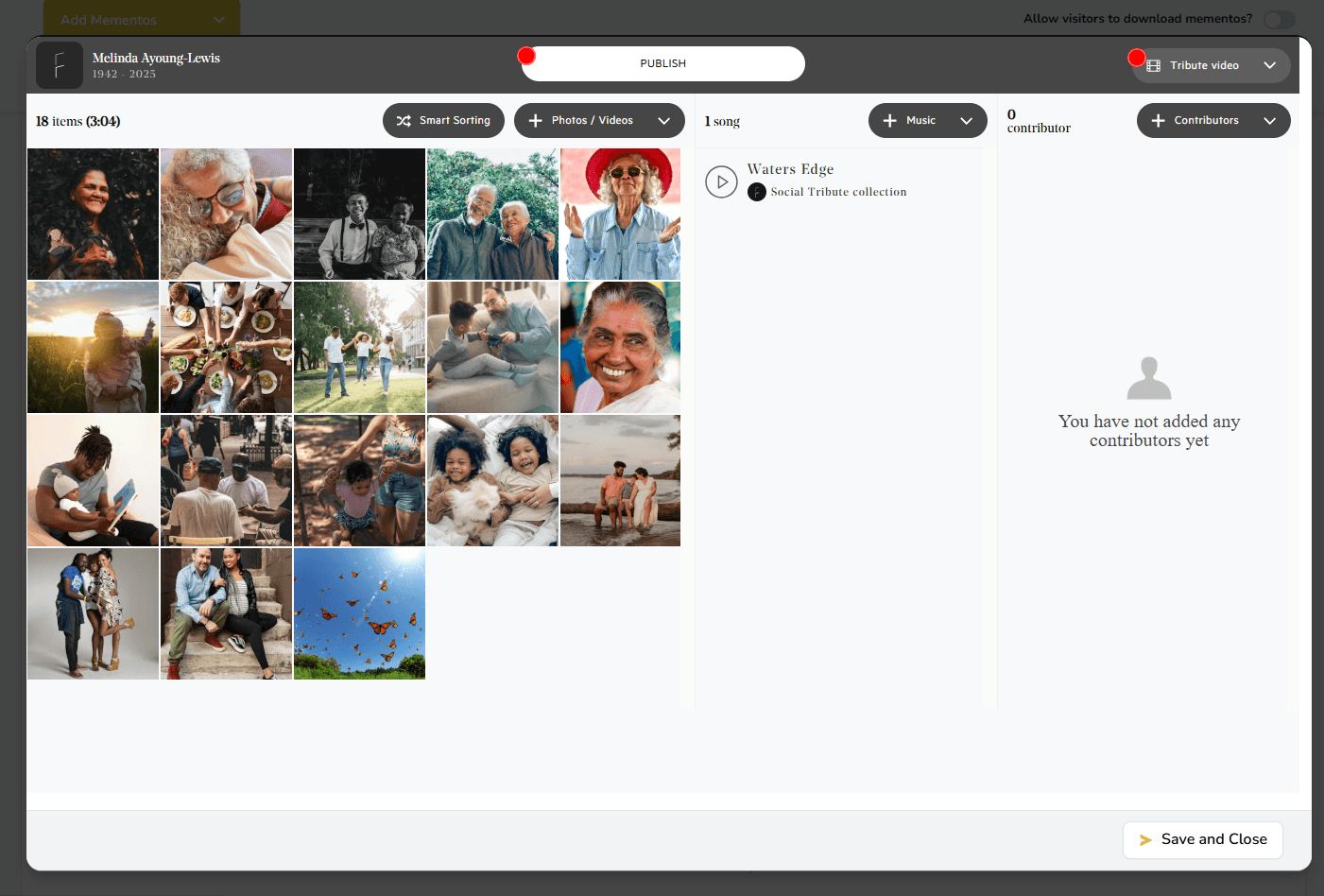
- Choose whether to sync all photos and videos back to Keeper’s Mementos Library
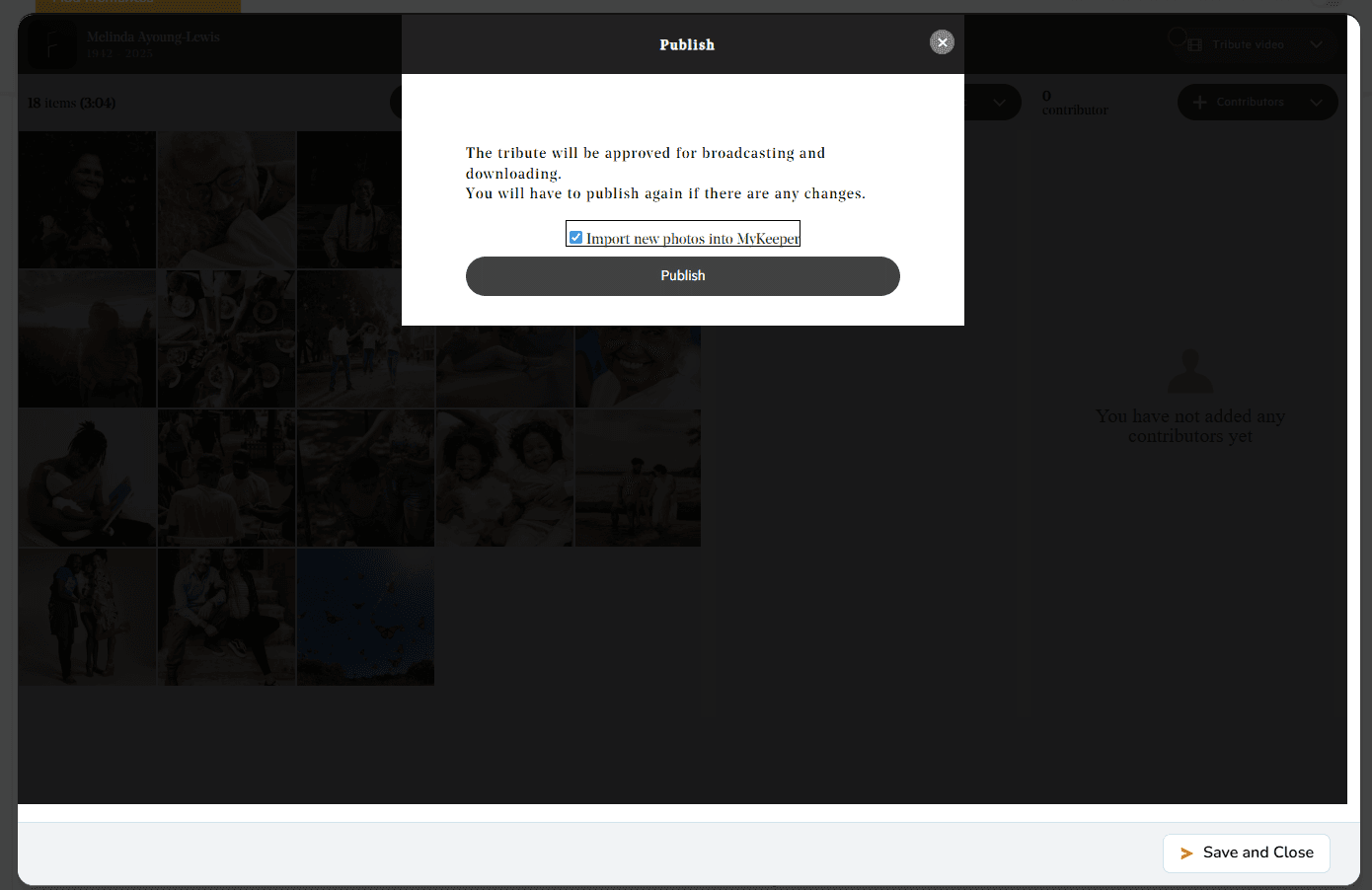
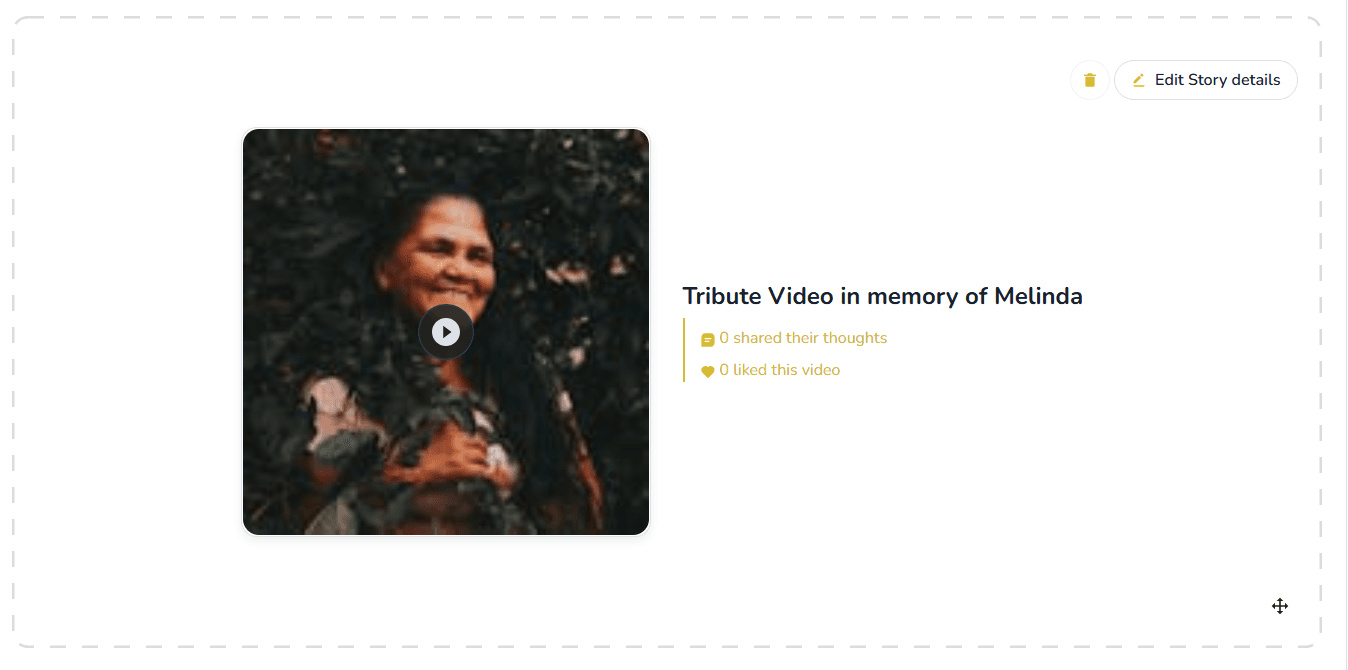
The Tribute Video will now appear on the memorial page.
Step 7: Edit Anytime
Tribute Videos can be updated at any time.
You can:
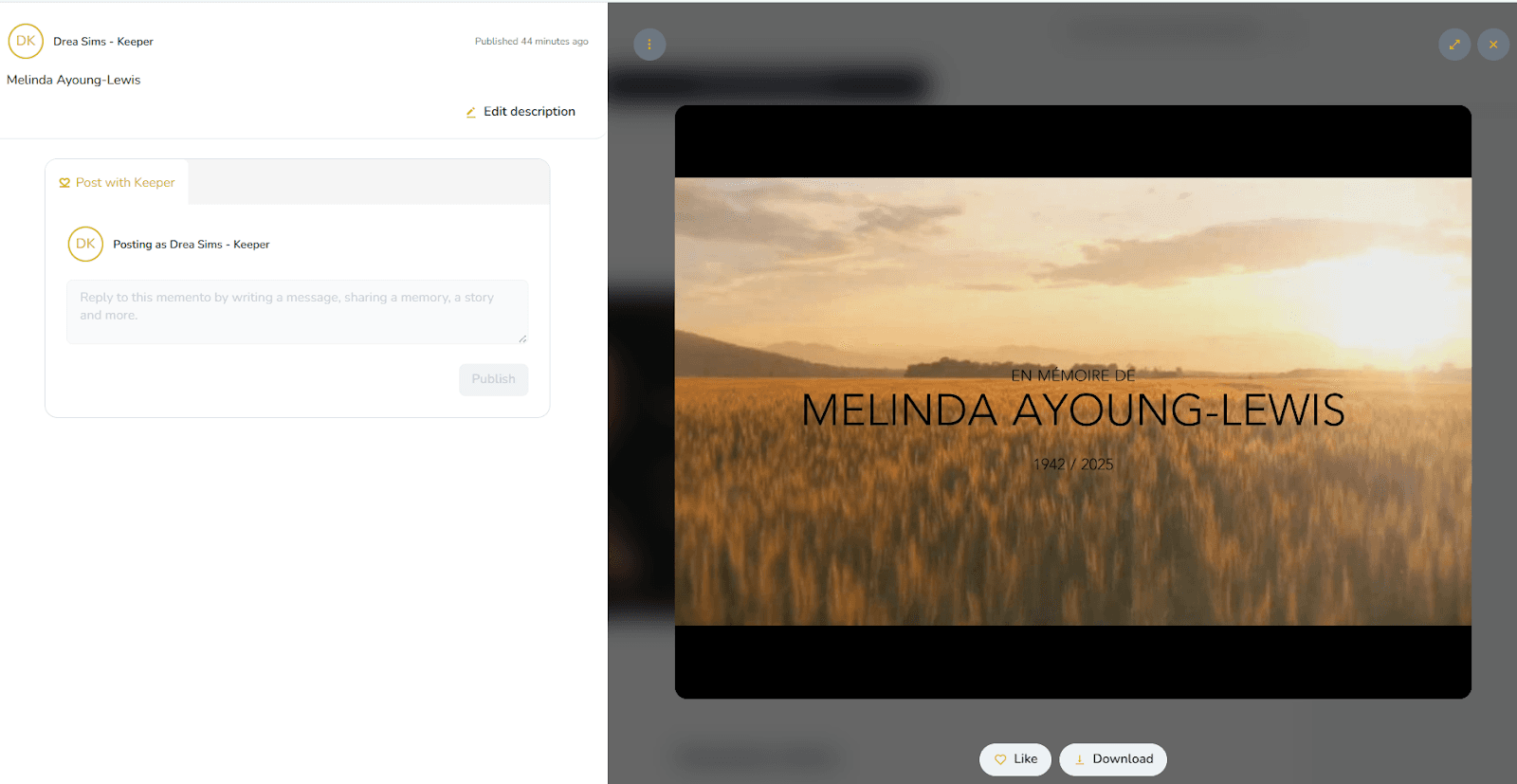
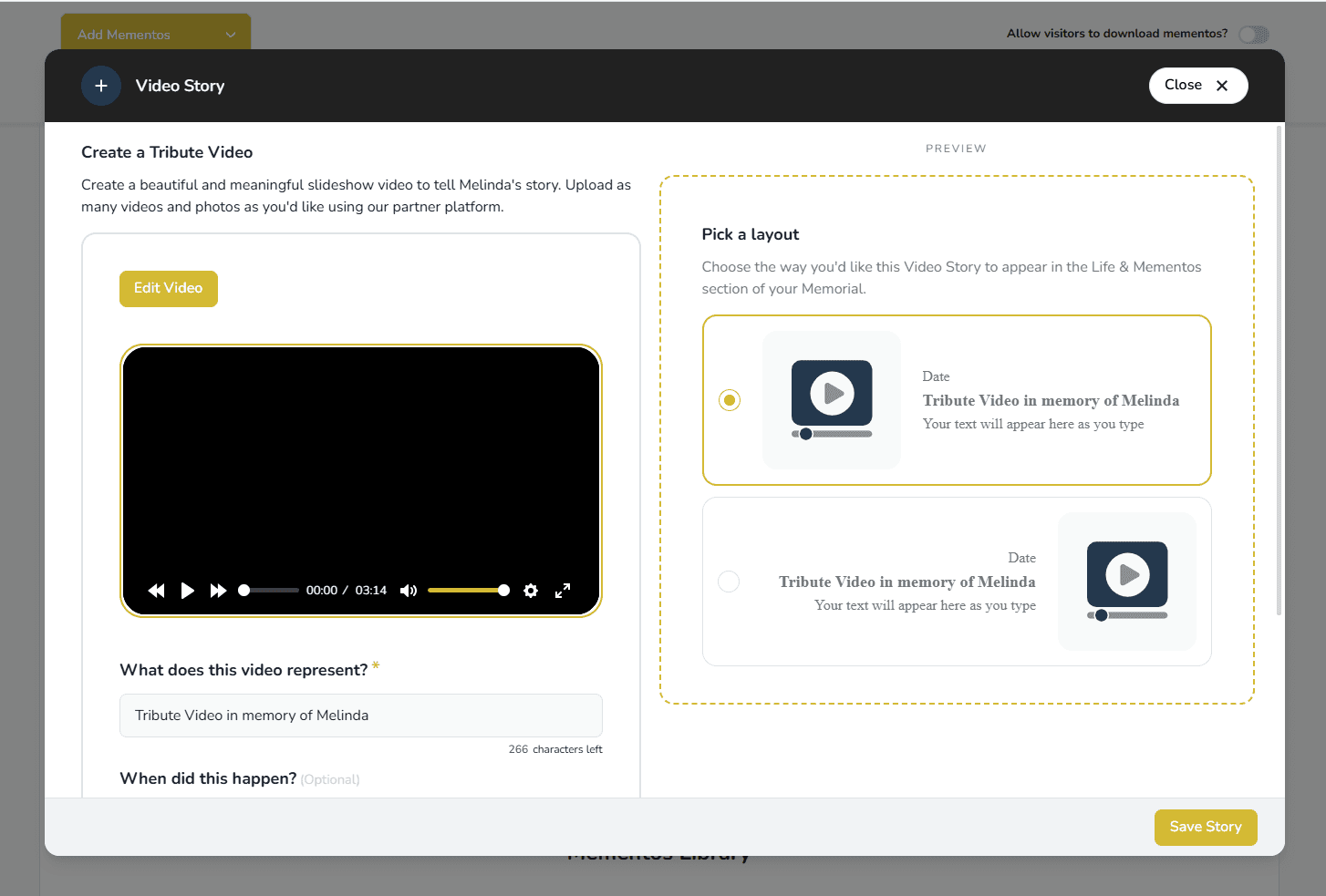
- Update the video description details:
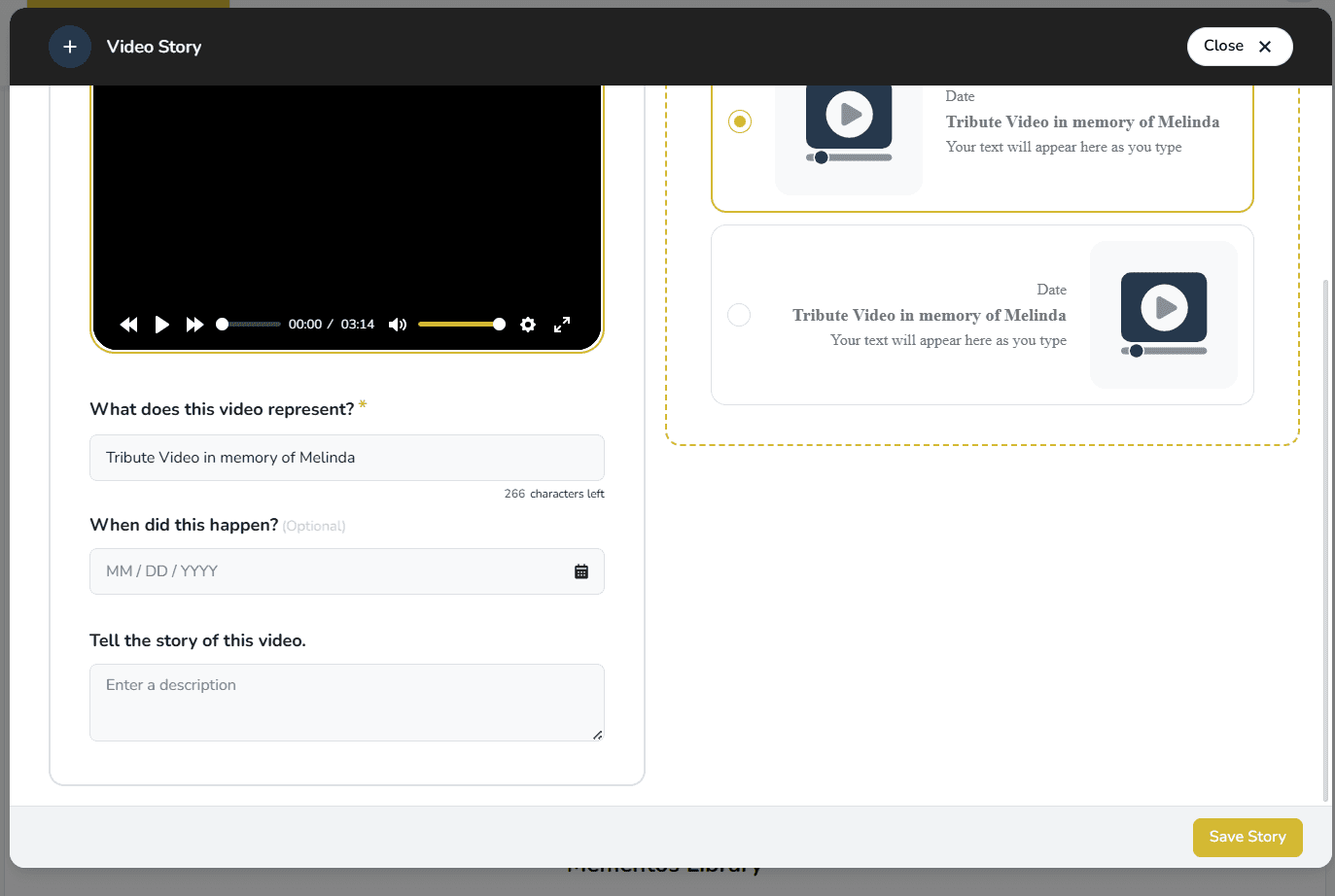
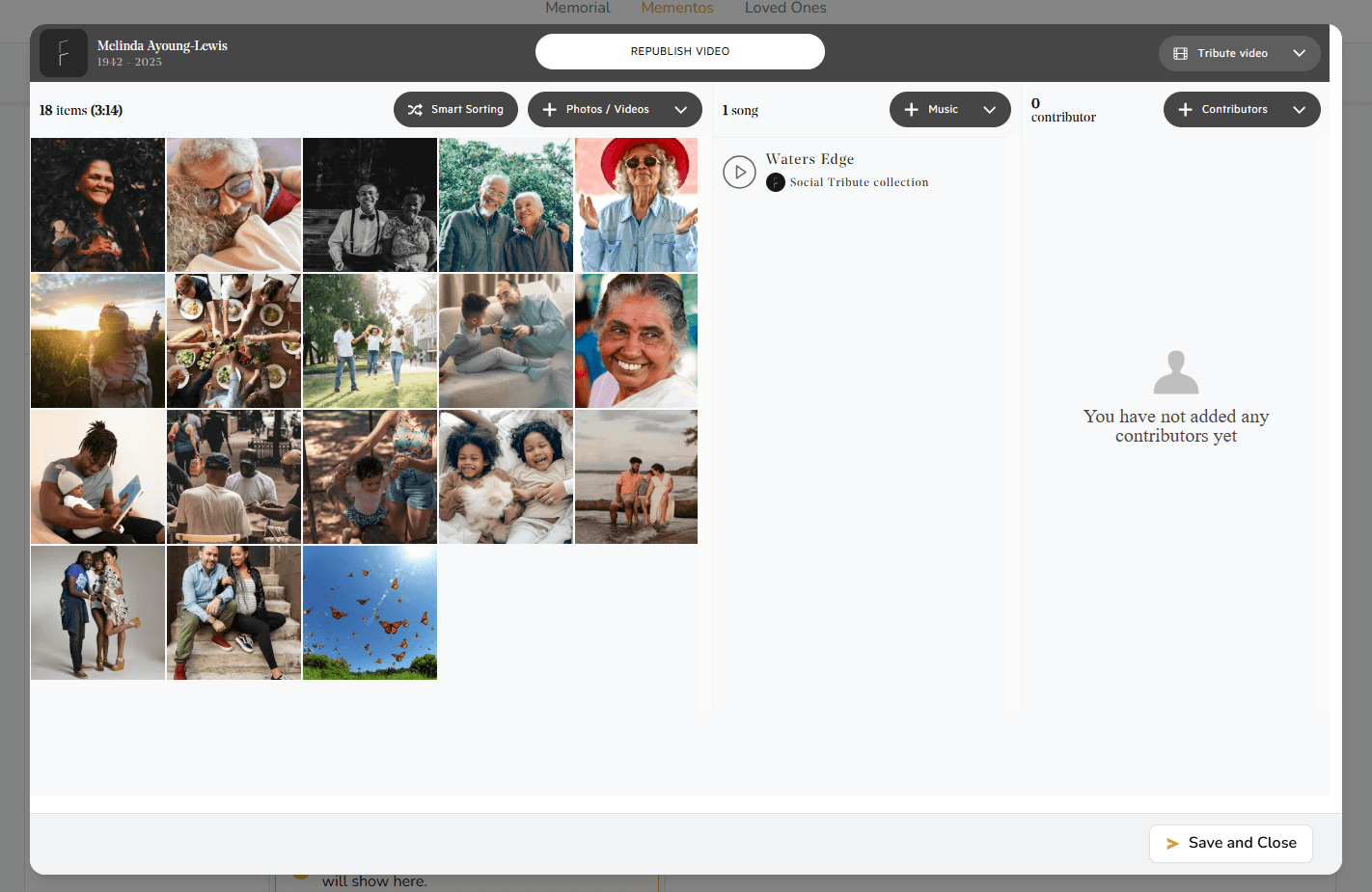
- Reopen the editor:
- Make changes and Republish the video
- Published Video: