
GeneralKeeperQR
How to link your digital memorial
Scan your KeeperQR to link it to an existing memorial, create a new one, or activate a gifted plaque.
If you selected a memorial during purchase
- Scan the QR code with your phone.
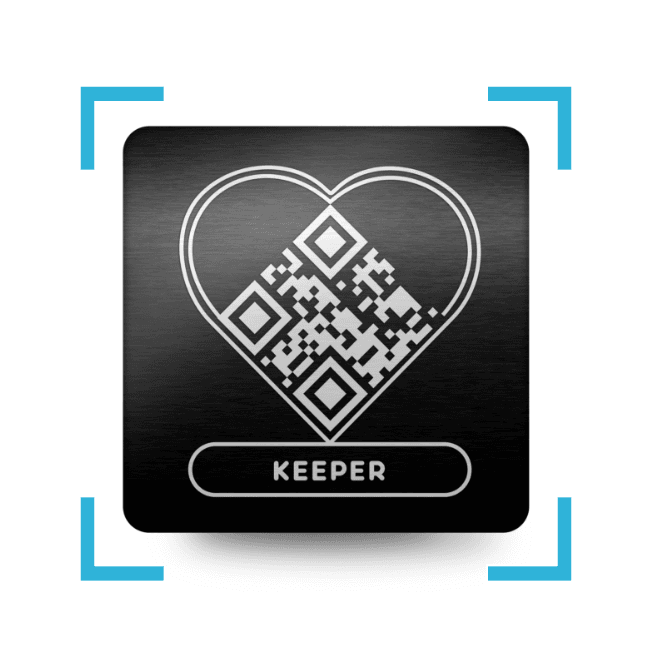
- Confirm the memorial that appears on screen.
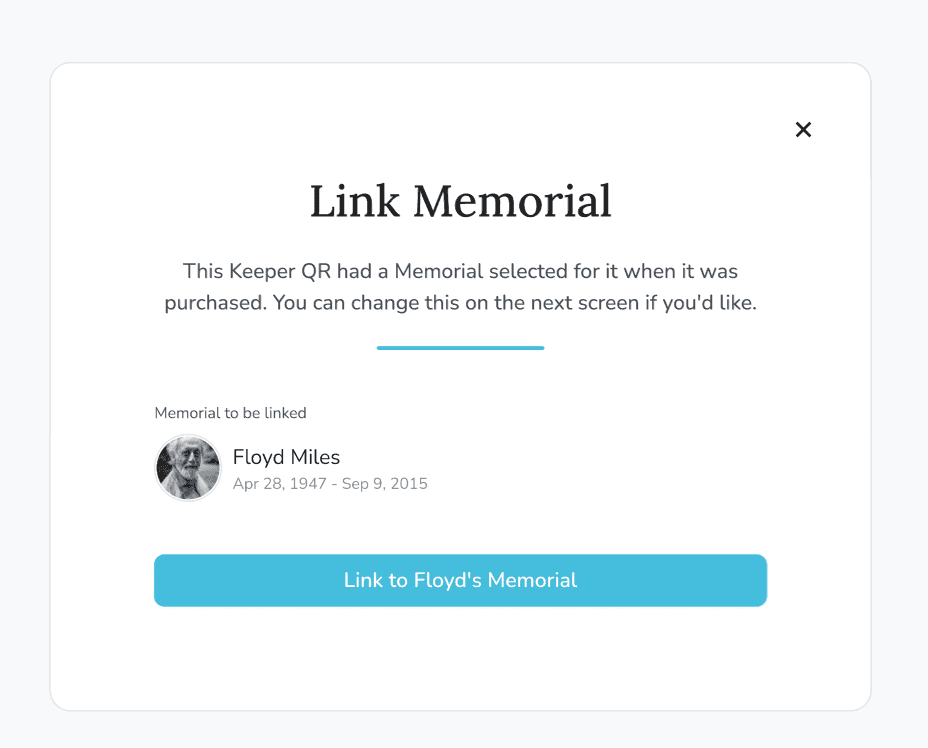
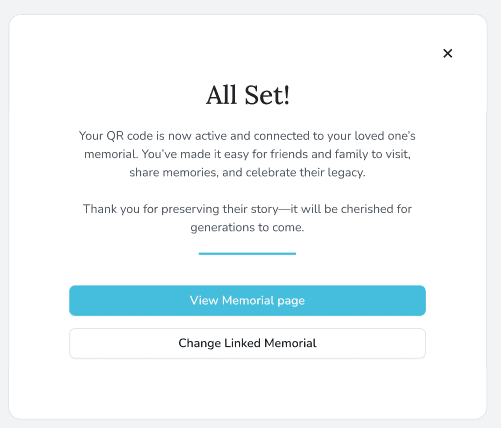
- Tap Link to [Name]’s QR. You’ll see a success message when the QR is live.
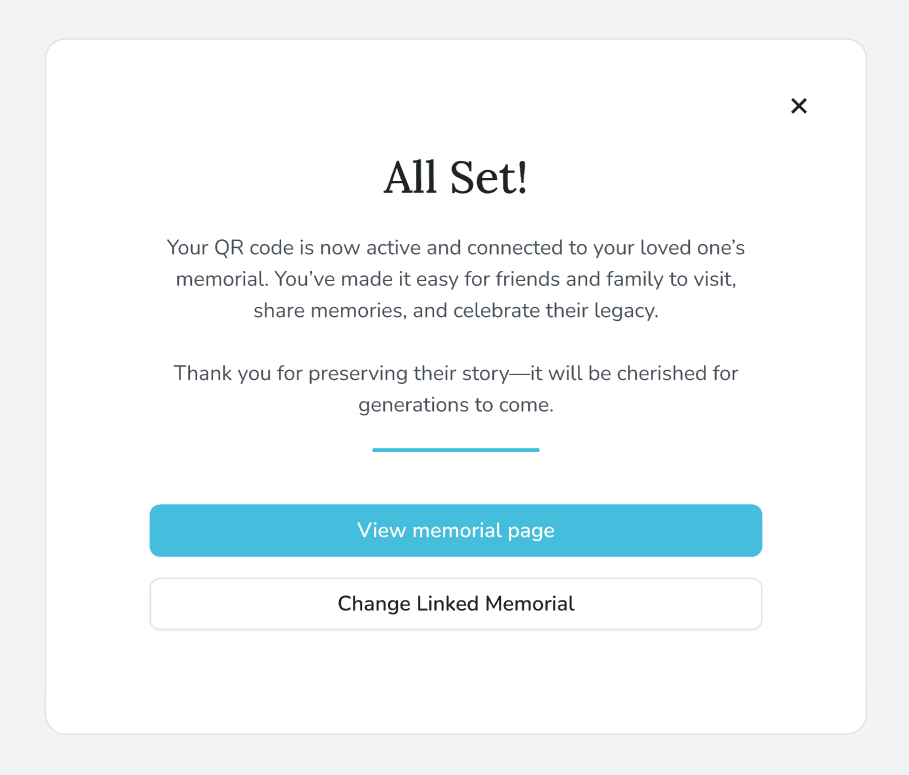
Want to link a different memorial? Choose Link a different memorial and follow the steps below.
If no memorial was selected
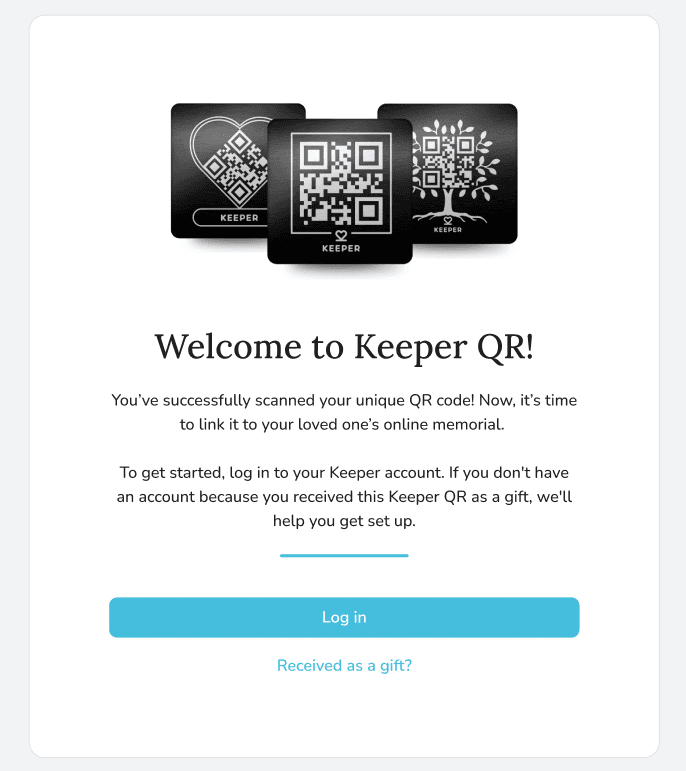
- Scan the QR code, then sign in to your Keeper account.
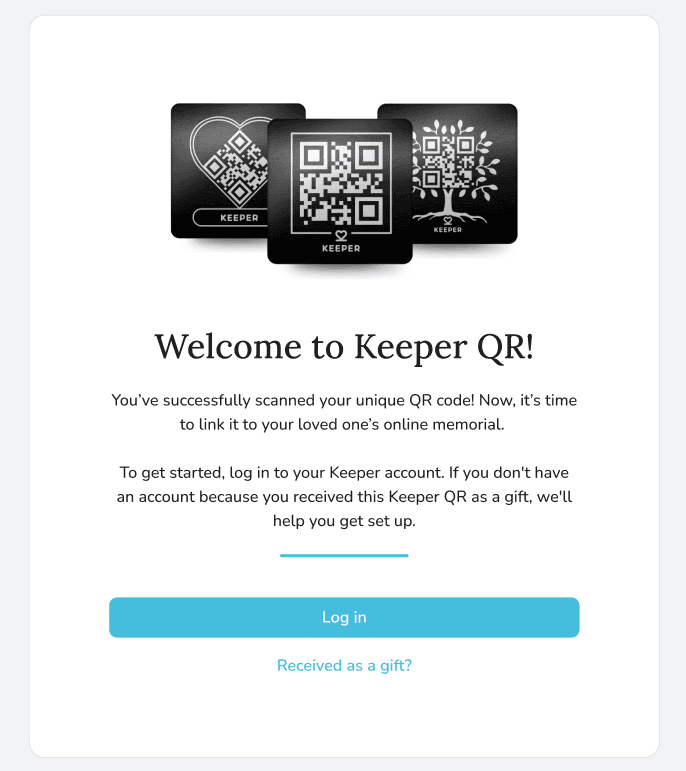
- After logging in, pick an existing memorial or create a new one.
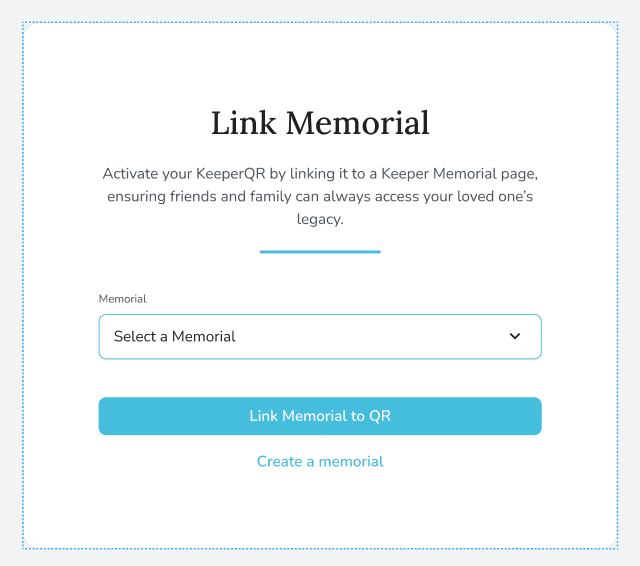
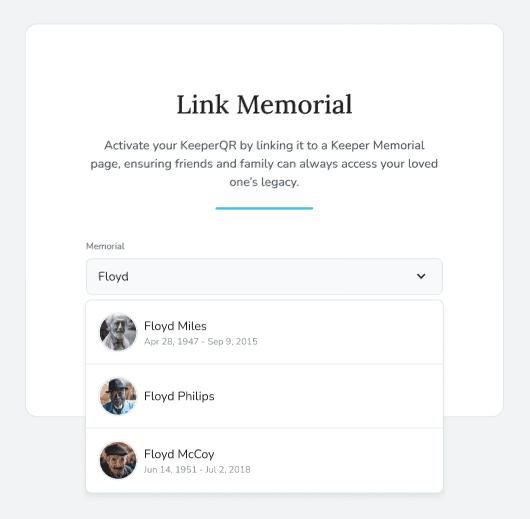
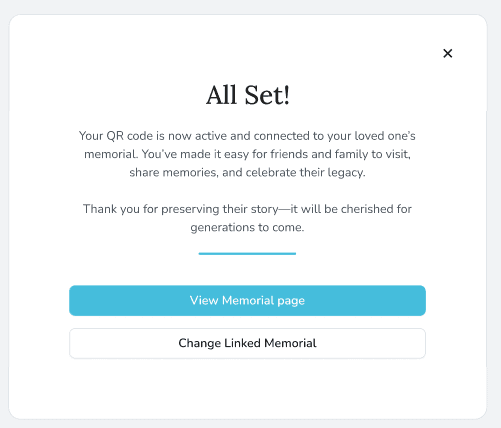
- Select Link Memorial to QR. A success screen confirms activation.
Create a new memorial during activation
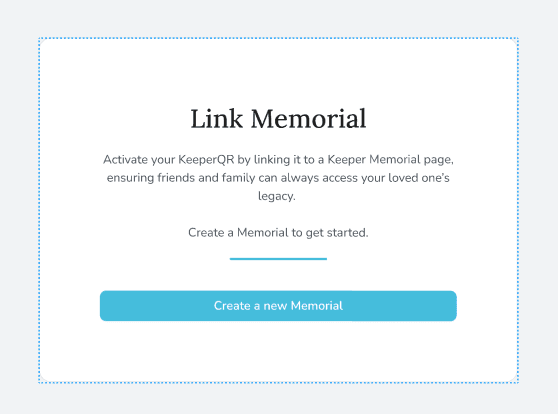
- From the welcome screen, choose Create a Memorial.
-
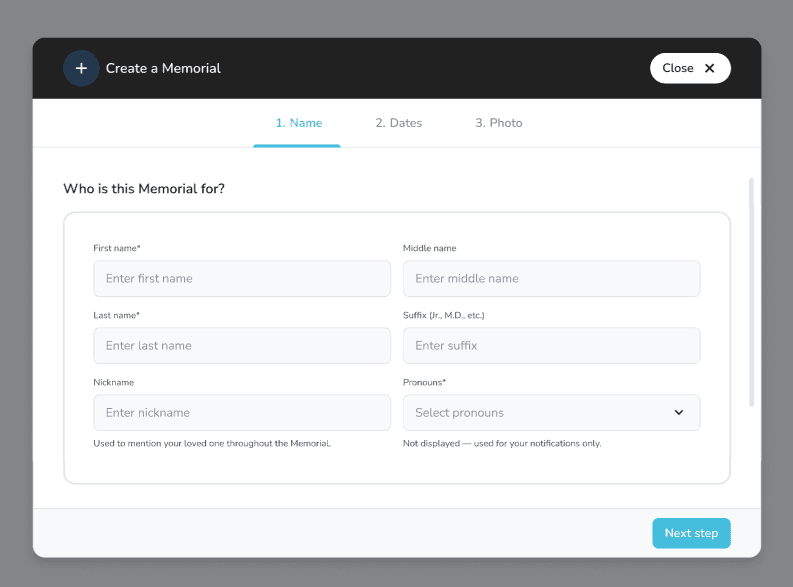
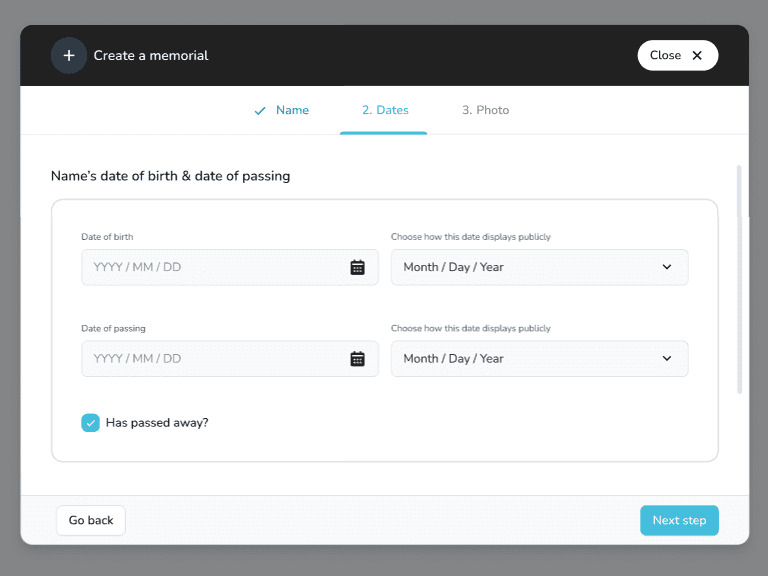
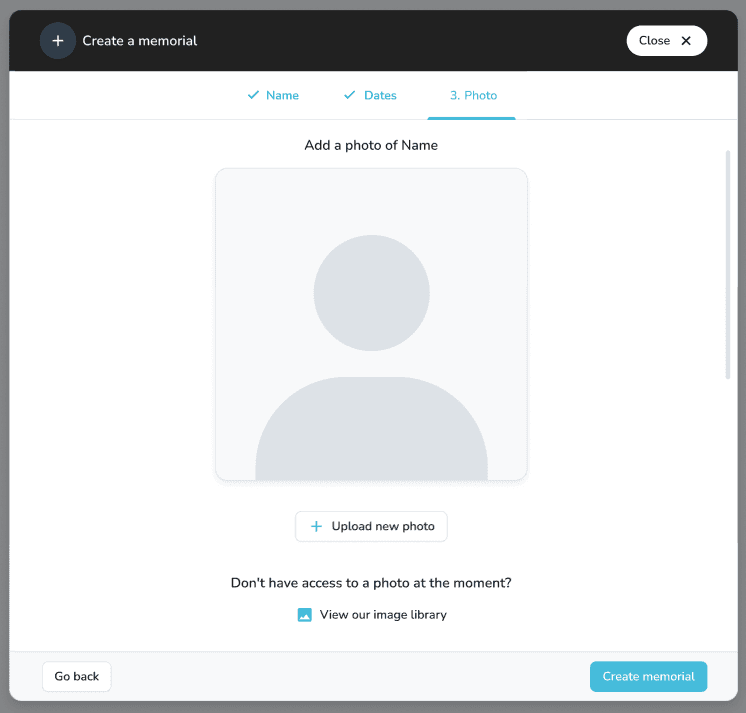
Complete the three-step modal:
-
Step 1: Enter the person’s name and pronouns.
-
Step 2: Add optional dates.
-
Step 3: Upload an optional profile photo.
-
-
Save the memorial and select Link Memorial to QR.
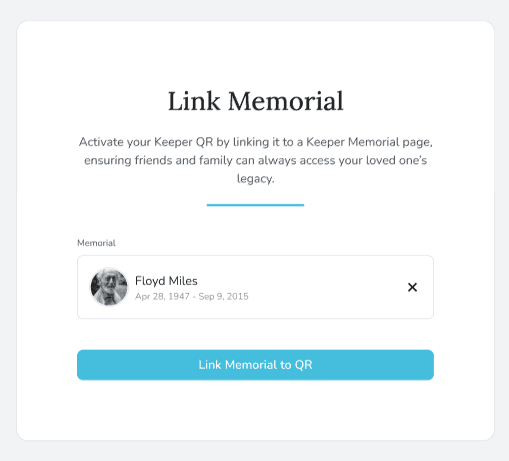
- You’ll see a confirmation screen once activation finishes.
Received a KeeperQR as a gift?
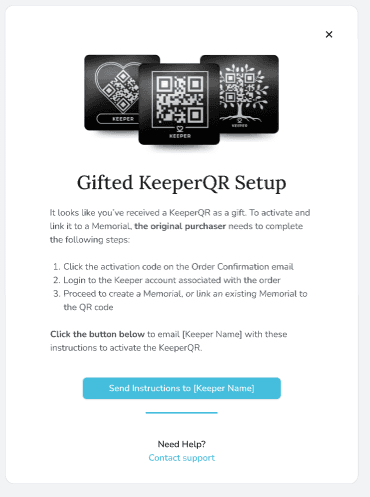
- Scan the QR and choose Received as a Gift.
- Review the instructions and optionally notify the purchaser.
- Once the memorial is linked, anyone who scans the QR will reach the digital memorial instantly.